GTA 6 Best Settings: What to Change on PS5 and Xbox
The best GTA 6 settings to change first: HDR calibration and HGiG, controls and sprint, aiming, camera, HUD and accessibility, on PS5 and Xbox.
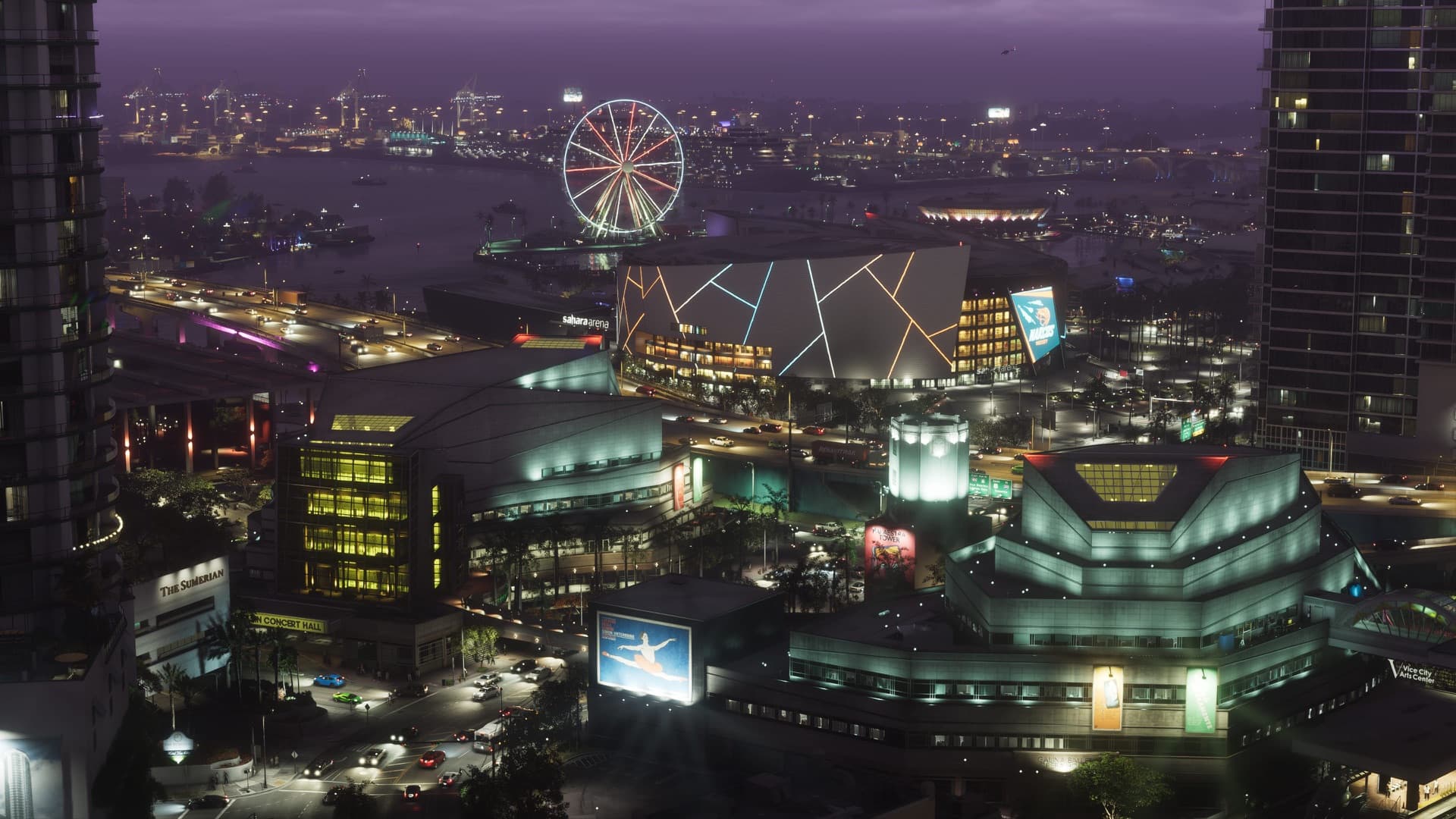
The first thing to fix in GTA 6 is HDR: turn on HGiG on your TV, then calibrate in the game. After that, a handful of control, aiming and camera options make a big difference. Here's what to change and why.
Quick answers
| Setting | Our pick |
|---|---|
| TV HDR | HGiG on |
| In-game HDR | Max Brightness = your TV's peak; Paper White 40–50 in a dark room |
| Black Levels | 50 for bright rooms/LCD, lower for OLED in the dark; never 70 |
| Controls | Default, or Classic for tap-to-sprint |
| Aiming | Pick Lock-On, Partial or Free Aim; try a different response curve |
| Camera | Turn off Weapon Sway, Camera Shake or Bob if they bother you |
1. Fix HDR first
Turn on HGiG on your TV before you start the game. Without it, the TV applies its own tone mapping, which can wash out blacks and highlights and throw off GTA 6's brightness sliders. Display expert Vincent Teoh of HDTVTest recommends it too, and says Rockstar's calibration screen works well only with HGiG on. On LG TVs the option is called HDR Tone Mapping, under Brightness, usually once Game Mode is on.
Calibrate HDR in your console's system settings first, then in the game: Pause menu > Settings > Display > HDR Calibration. The defaults are Max Brightness 600, Black Levels 50 and Paper White 50. The sliders affect each other:
- Paper White is really an overall brightness control. Each 5-step drop dims the picture by about 17%, shadows included, and going above 50 only squashes highlights.
- Max Brightness also lifts the midtones.
- Black Levels: 50 suits bright rooms or LCD screens; on an OLED in a dark room, go lower. At 70, blacks turn grey.
A good starting point: set Max Brightness to your TV's real peak, choose Paper White (40 to 50 in a dark room), then fine-tune Max Brightness again.
On PS5, one video recommends setting resolution, VRR and 120Hz output to Automatic and HDR to Always On in the console settings. The game itself runs at 30fps on every console; our performance guide explains why.
2. Controls
- Sprint. By default you run with L3, jump with X, crouch with Circle and melee with Square. The Classic scheme brings back tap X to sprint, Square to jump, Circle to melee and L3 to crouch.
- Movement speed. Choose whether a full stick tilt walks or runs automatically.
- Deadzones. Adjust left and right stick deadzones, alongside vibration, haptics and adaptive triggers on PS5.
- Adaptive Speed Limiter caps your car's speed while you hold the accelerator, handy for careful driving in Vice City traffic.
Our controls guide has the full button layout.
3. Aiming
Pick a targeting mode: Lock-On, Partial or Free Aim. GTA 6 also adds an Aim Response Curve: Standard, Linear, Precision or Aggressive. If aiming feels sluggish or jumpy, try another curve before changing sensitivity. You can also change the reticle to Complex, Simple, Dot or None.
4. Camera, HUD and audio
- Camera comfort: toggle Weapon Sway, Camera Shake and Camera Bob. One video also shows a motion blur slider down to zero.
- Navigation HUD: Dynamic, Minimap & Compass, or Minimap Always On. Dynamic hides the minimap in quiet moments.
- Subtitles: Off, On or Mission Only.
- Streaming? Turn on Mute Licensed Music (pause > Settings > Audio, at the bottom) to avoid copyright strikes. Licensed songs go silent, but DJ talk and music made for the game keep playing, and song captions still show.
- Radio off by default when you get in a car, if you prefer.
5. Accessibility
Accessible Combat lowers enemy health and Reduced Vehicle Damage makes cars tougher. They change the balance a lot, so save them for when you're stuck. One video also shows tap assist options that turn button-mashing into a hold.
New to the game? Read our beginner's guide.
Sources
Based on 6 videos and articles. Here are the main ones, with credit to their creators.
- ArticleOne TV Setting Could Be Ruining GTA 6’s HDR — Here’s How to Fix ItVGTimes
- VideoSettings You NEED To Change In GTA 6! (ALL PLATFORMS!)MrRoflWaffles
- VideoThe BEST Settings To Change in GTA 6! (In Depth Guide)GhillieMaster
- VideoGTA 6 BEST SETTINGS You NEED To Use! (Grand Theft Auto 6 Best Controller, Gameplay, & UI Settings)Hazard
- ArticleGTA 6 PSA: Make sure HGiG is on for your HDR TV for the best GTA experienceVGC
Show all 6 sources +Show fewer −
Keep reading
 Image: Rockstar Games
Best Console for GTA 6: PS5 vs PS5 Pro vs Xbox Series X|S
Updated Nov 16, 2026 · 10 min read · 37 sources
 Image: Rockstar Games
GTA 6 Controls: Full PS5 and Xbox Button Layout
Nov 19, 2026 · 4 min read · 5 sources
 Image: Rockstar Games
GTA 6 Is Out in New Zealand: How to Play Early on PS5 and Xbox
Updated Nov 20, 2026 · 5 min read · 23 sources
 Image: Rockstar Games
Can You Still Cancel a GTA 6 Pre-Order? Refunds on PS5 and Xbox
Nov 7, 2026 · 5 min read · 15 sources
 Image: Rockstar Games
GTA 6 on PS5, PS5 Pro and Xbox: Why It's Locked to 30fps
Updated Nov 19, 2026 · 6 min read · 20 sources
 Image: Rockstar Games
GTA 6 Performance: PS5 vs PS5 Pro vs Xbox Series X vs Series S
Nov 18, 2026 · 3 min read · 5 sources